
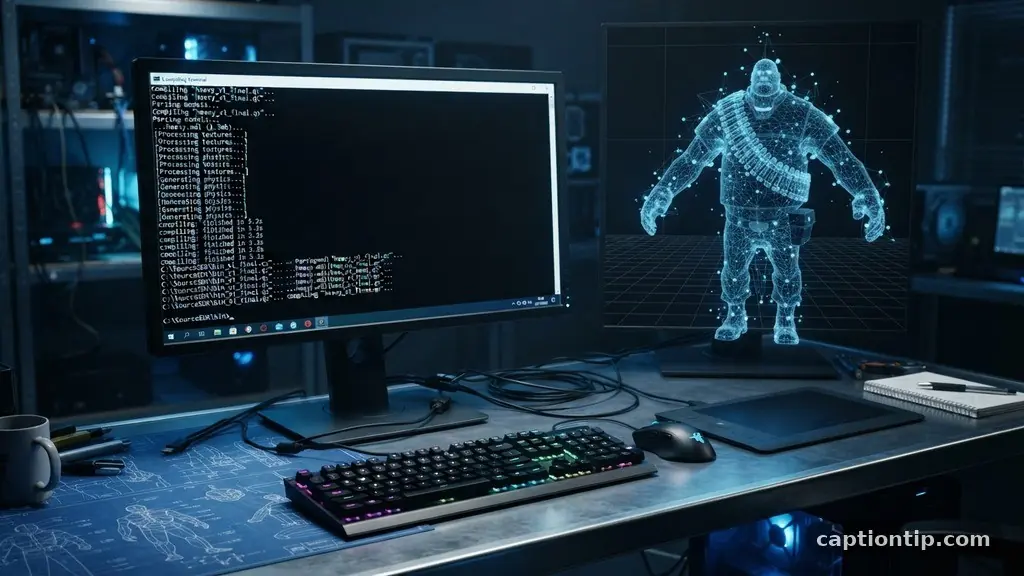
Mastering the SFM compile process is the bridge between a static 3D model and a functional asset within Source Filmmaker. Whether you are porting custom characters or designing original environments, understanding how the engine interprets your data is essential for professional-grade results. This article explores the technical requirements for rigs, materials, and maps, ensuring you can successfully move your creative work into the engine.
By following these standardized workflows, you will avoid common errors like missing textures or broken animations. You will learn how to prepare your files, write precise QC scripts, and troubleshoot the final output to ensure your projects look and perform exactly as intended.
The Mechanics of Model Compiling
The core of any character or prop integration lies in the QC file, which serves as the instruction manual for the compiler. This text file tells the engine exactly where to find your reference mesh, how to handle skeletal rigs, and which animation sequences to include.
When you initiate an SFM compile, the compiler reads these commands to pack your data into the proprietary .mdl format. Without a correctly formatted QC file, your model will fail to load or appear as a “missing texture” error in the viewport.
To begin, ensure your reference mesh is exported as an SMD or DMX file from your 3D software. You must define the body, the path to your textures, and the skeletal hierarchy within the QC script.
It is helpful to organize your project folder structure before you start the compile. Keeping your models, materials, and scripts in separate subfolders under the “usermod” directory prevents pathing issues later on.
Defining Material Paths and Shaders
A model is only as good as its surface appearance, which is why defining material paths is a critical step in the pipeline. When you compile, the engine looks for VMT (Valve Material Type) files that point to your VTF (Valve Texture Format) images.
If the path inside your VMT does not match the folder structure defined in your QC, the model will display the dreaded purple-and-black checkerboard pattern. You must ensure that your materials are placed in the “materials/models/” hierarchy to be recognized correctly.
Beyond simple textures, you should leverage VMT parameters to enhance the visual fidelity of your assets. Features like “$bumpmap” for normal maps, “$phong” for specular highlights, and “$rimlight” for edge lighting can significantly improve how your models interact with the scene’s lighting.
When compiling for SFM, these shaders act as the final layer of polish. Always double-check that your VMT files are saved in the correct format, as the engine is sensitive to even minor syntax errors in these text-based files.
Essential Workflow for Skeletal Rigs
Skeletal rigs are the backbone of your character assets, allowing for the complex movement required in cinematic animation. During the compile, you must specify the skeleton in your QC file using the “$model” command and the reference SMD.
If your bones are not properly weighted or named, the model will deform incorrectly or fail to move at all. It is common practice to use a standard Valve skeleton if you want to take advantage of existing animation sets.
For advanced users, creating custom rigs requires careful attention to the bone hierarchy. You must ensure that the root bone is correctly positioned at the origin of your scene.
If the hierarchy is inconsistent, the bones may snap to the wrong location or cause the mesh to explode upon loading. Rigging for the Source engine is a precise discipline, but once you establish a clean workflow, it becomes a repeatable process that saves hours of troubleshooting.
Optimizing Collision Hulls and Hitboxes
Physical interaction in your scenes depends on how you configure collision hulls and hitboxes. These invisible meshes dictate how light hits the model and how it reacts to physics-based actions.
When you define these in your QC file, you should keep them as simple as possible to ensure performance stability. A complex collision mesh can significantly increase the computational load during a render, leading to unnecessary lag.
The “$collisionmodel” command is where you specify the physical properties of your object. You can set the mass, inertia, and surface properties, such as metal, wood, or plastic.
For characters, you should also define hitboxes to ensure that the engine can accurately calculate spatial bounds. While these are often overlooked during the initial compile, they are vital for complex scenes where models need to interact with the environment or other physics-enabled objects.
Mapping and Level Design Workflow
Mapping and level design workflow involves a different set of challenges compared to model compiling. You start by building your geometry in a tool like Hammer, which is the official level editor for the Source engine.
Once the geometry is finalized, you must run the map through a series of compilers to generate the necessary data for the engine. This process includes VVIS, visibility optimization, and lightmap calculation respectively.
The VVIS pass is particularly important as it determines which parts of the map are visible to the camera at any given time. By optimizing these visibility sectors, you can keep your frame rates high even in dense environments.
If you skip these steps or encounter errors, the map will either fail to load or suffer from major lighting glitches. Understanding the Source Asset Pipeline is key to maintaining a smooth experience when building custom sets for your films.
Common Compile Issues and Solutions
Even experienced creators run into errors during the build process, and knowing how to interpret the log files is a necessary skill. Most compile errors are caused by syntax mistakes in the QC file or missing files in the directory.
You should always keep the compile console open to catch these warnings as they appear. Often, the error message will point exactly to the line in your script that is causing the problem.
If you find that your model is invisible, check the console for “failed to load” messages related to your textures or models. Sometimes, a simple typo in a file path is all that stands between a successful import and a broken asset.
You can also consult the Valve Developer Community for detailed documentation on specific commands and error codes. Do not get discouraged by these initial failures; they are a normal part of the learning process for any digital artist.
Comparing Assets for Efficiency
When managing a large library of custom content, it helps to keep a record of your assets and their specific requirements. This table serves as a quick reference for common file types and their intended use cases within the engine.
| Asset Type | Primary File Extension | Compile Tool |
|---|---|---|
| Static Prop | .mdl | studiomdl.exe |
| Environment Map | .bsp | vrad.exe / vvis.exe |
| Material Texture | .vtf | vtex.exe |
| Material Definition | .vmt | Text Editor |
Using this structure ensures that you always know which tool to use for a given task. It also helps in organizing your project folders, making it easier to manage hundreds of individual assets without losing track of your source files.
Best Practices for Asset Management
Organizing your work is the most effective way to prevent long-term frustration in Source Filmmaker. You should always keep your source files, such as FBX or OBJ files, in a separate project folder from your game-ready assets.
This allows you to re-compile your models if you decide to update the textures or adjust the rigging later. Never work directly out of the game directory, as it makes version control nearly impossible.
* Maintain a master spreadsheet of all your custom model names and their corresponding QC files.
* Use descriptive naming conventions for your textures to avoid conflicts between different projects.
* Back up your entire “usermod” folder regularly to protect your work against accidental deletion.
* Test your models in a clean, empty map before integrating them into a complex scene.
* Keep your script files commented so you can remember what specific commands do months later.
Following these steps will streamline your workflow and allow you to focus on the creative aspects of your filmmaking. Staying organized is the difference between spending your time animating and spending your time hunting for lost files.
Frequently Asked Questions
Why does my model appear as a black and purple checkerboard?
This is the standard indicator that the engine cannot find the texture files associated with your model. Check your VMT file to ensure the path in the “$basetexture” parameter points to the correct location relative to your “materials” folder.
What is the difference between an SMD and a DMX file?
SMD is the older, more common format for Source engine assets, while DMX is a more modern, flexible format developed by Valve. Most compilers support both, but SMD is often preferred for simple static props due to its widespread compatibility.
How do I fix a model that is floating or stuck in the floor?
This issue is usually caused by an incorrect origin point in your 3D software or an improperly configured collision hull. Ensure that the root bone of your skeleton is placed at the world origin (0,0,0) before exporting your model.
Can I import models from other games into SFM?
Yes, but you must ensure that the materials and skeletons are compatible with the Source engine’s requirements. You will likely need to re-rig the model and convert the textures to the VTF format for it to function correctly.
Why is my map crashing during the compilation process?
Crashes during compilation are often caused by memory limitations or geometry errors, such as “leaks” where the map is not fully sealed. Use the “Load Pointfile” feature in the editor to find and patch any holes in your map’s geometry.
Final Thoughts on the Pipeline
Integrating your own creative assets into Source Filmmaker is a rewarding challenge that opens up endless possibilities for your projects. By mastering the SFM compile process, you gain total control over the models, maps, and rigs that populate your cinematic worlds. Remember that every error message is simply a guide pointing you toward a more stable configuration.
Consistent organization and a methodical approach to your files will allow you to focus on storytelling rather than technical troubleshooting. As you continue to build your library of custom assets, you will find that the process becomes second nature, enabling you to bring your unique visions to life with greater speed and precision. Keep experimenting, keep testing, and enjoy the creative freedom that comes with knowing the engine inside and out.